

01
Nov
Active Buzzer, a Beep Without Code
Draft. This tutorial has not been checked against the physical product yet. Confirm wiring, pin assignments and voltage limits against the product documentation before building it.
| Difficulty | Beginner |
|---|---|
| Category | Outputs |
| Supported boards | Arduino Uno R3 and compatible ATmega328P boards |
| Time needed | 25 minutes |
| Prerequisites | Your First Circuit, an LED and a Resistor |
| Tested board | Not yet verified |
| Tested on | Not yet verified |
| Arduino IDE version | Not yet verified |
| Library | Not yet verified |
What it does
An active buzzer contains its own oscillator. Give it a steady voltage and it sounds at a pitch the manufacturer chose. Take the voltage away and it stops.
That makes it the simplest output in the library. digitalWrite(pin, HIGH) is the whole of it, and the code is identical to switching an LED. When a project needs to make a noise rather than a tune, this is the part to reach for.
Siratek also sells a passive buzzer, which has no oscillator and plays whatever frequency you feed it. Choosing the wrong one is the usual disappointment with this part.
| Active | Passive | |
|---|---|---|
| Driven with | A steady voltage | A changing signal, from tone() |
| Pitch | Fixed by the maker | Whatever you ask for |
| Code | digitalWrite() |
tone() and noTone() |
| Use it for | Alarms, confirmation beeps, warnings | Melodies, varying alerts |
Before you begin
Required parts and tools
- An Arduino Uno or compatible board.
- One active buzzer.
- A breadboard and two jumper wires.
Telling the two apart
Connect the buzzer briefly between 5V and GND. An active buzzer sounds at once. A passive one gives a faint click and nothing more.
Active buzzers are usually sealed underneath, while passive ones often have the element visible through an open base. That is a helpful hint rather than a rule, so test if you are unsure.
Polarity matters here
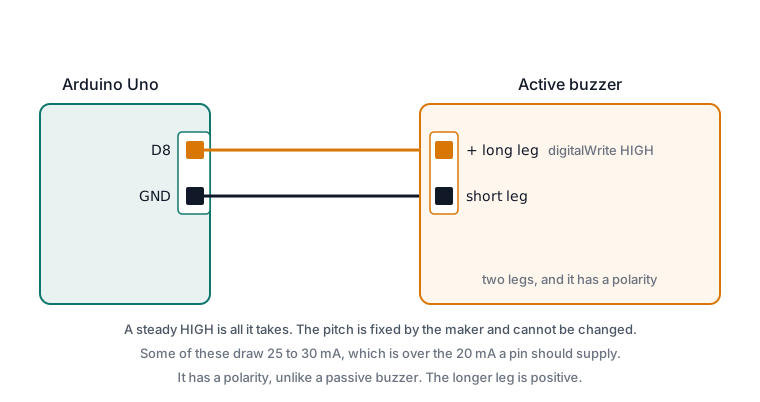
Unlike the passive type, an active buzzer has an oscillator circuit inside and does care which way round it goes. The longer leg is positive, and the body is usually marked with a +.
Backwards, it will not sound. It is unlikely to be damaged by a brief mistake, but there is nothing to gain by finding out.
Check the current before driving it directly
This is the one real caution. An Uno pin supplies about 20 mA comfortably. Active buzzers vary widely, and some draw 25 to 30 mA, which is over that.
Check the rating for the part you have. If it is at or under about 20 mA, a pin can drive it directly, as the sketch below does. If it is higher, or you do not know and the buzzer will sound for long periods, drive it through a small transistor or a MOSFET module with its own supply.
A short confirmation beep is far less demanding than a continuous alarm. If you are building something that sounds for minutes at a time, use a transistor regardless.
Pin reference
| Pin or label | Connect to | Purpose | Notes |
|---|---|---|---|
Longer leg, marked + |
Uno D8 |
Switches the buzzer on | Any digital pin |
| Shorter leg | Uno GND |
Return path |
Pin 8 is used because it is clear of the serial pins. Unlike the passive buzzer, this one needs no PWM and no timer, so none of the pin conflicts apply.
Wiring steps
- Unplug the USB cable.
- Place the buzzer with each leg in its own breadboard row.
- Connect the shorter leg to
GND. - Connect the longer leg, the one marked
+, to digital pin8. - Plug the USB cable back in.
Software and libraries
No library is required. digitalWrite() is all this part needs.
Minimal working example
// Siratek: a confirmation beep from an active buzzer.

const int buzzerPin = 8;

void setup() {
  pinMode(buzzerPin, OUTPUT);
  digitalWrite(buzzerPin, LOW);   // Start silent.

  Serial.begin(9600);
  Serial.println("Siratek: active buzzer starting.");
}

// One beep of a given length, then a pause.
void beep(unsigned long onFor, unsigned long offFor) {
  digitalWrite(buzzerPin, HIGH);
  delay(onFor);
  digitalWrite(buzzerPin, LOW);
  delay(offFor);
}

void loop() {
  Serial.println("single");
  beep(150, 1500);

  Serial.println("double");
  beep(80, 120);
  beep(80, 1500);

  Serial.println("long");
  beep(600, 2000);
}
Pitch cannot be changed, so the only thing you control is rhythm. That turns out to be enough: one short beep for done, two for check something, one long for problem. A pattern is easier to recognise across a room than a pitch.
Expected result
A single short beep, then a double beep, then one long one, repeating with pauses between.
The sound is loud for its size and does not vary. If you need to work beside it for any length of time, shorten the on-times while developing.
Troubleshooting
| Symptom | Likely cause | Check or fix |
|---|---|---|
| No sound at all | Fitted backwards | The longer leg, marked +, goes to the pin |
| No sound, polarity confirmed | Wrong pin, or GND missing |
Check both wires against the sketch |
| Faint click only | It is a passive buzzer | Use tone(), or fit an active one |
| Sounds constantly from power-up | Pin left floating | Add digitalWrite(pin, LOW) in setup() |
| Sounds weakly | Current beyond what the pin supplies | Drive it through a transistor |
| Board resets when it sounds | Supply dipping under the load | Transistor and a separate supply |
| Cannot change the pitch | Active buzzers have a fixed pitch | Use the passive buzzer |
Next steps
- Easier first: Your First Circuit, an LED and a Resistor, which is the same code driving a different part.
- Related product: the passive buzzer, when the pitch has to change.
- Next project: add a beep to the push button, then to the HC-SR04 so it warns as something gets close.
Sources and attribution
All text, wiring guidance and code in this tutorial are original Siratek work.
- Arduino Uno R3 documentation for the per-pin current limit.
- Arduino core documentation for
digitalWrite().
Buzzer current draw and polarity marking vary between suppliers, so both are given as things to check on the part in hand. No third-party tutorial text, diagrams, photographs or code has been reproduced here.