

01
Nov
Using a Breadboard
Draft. This tutorial has not been checked against the physical product yet. Confirm wiring, pin assignments and voltage limits against the product documentation before building it.
| Difficulty | Beginner |
|---|---|
| Category | Foundations |
| Supported boards | Any Arduino or ESP32 board |
| Time needed | 20 minutes |
| Prerequisites | Voltage, Current and Resistance |
| Tested board | Not yet verified |
| Tested on | Not yet verified |
| Arduino IDE version | Not yet verified |
| Library | Not yet verified |
What this covers
Which holes in a breadboard are joined to which, how to build on one without creating shorts, and the handful of mistakes that account for most “it was working yesterday” faults.
Before you begin
- A breadboard, full size or half size.
- A few jumper wires.
- Any components you want to try the layout with. Nothing needs to be powered for this.
Build with the power disconnected. Every instruction in this library assumes that, and it is the habit that prevents the expensive mistakes.
What is connected to what
A breadboard is a grid of holes with metal clips hidden underneath, joining them in a fixed pattern. Nothing is soldered; the clips grip a wire or component leg pushed into a hole.
There are two different regions, and they run in different directions.
| Region | Where | Connected how |
|---|---|---|
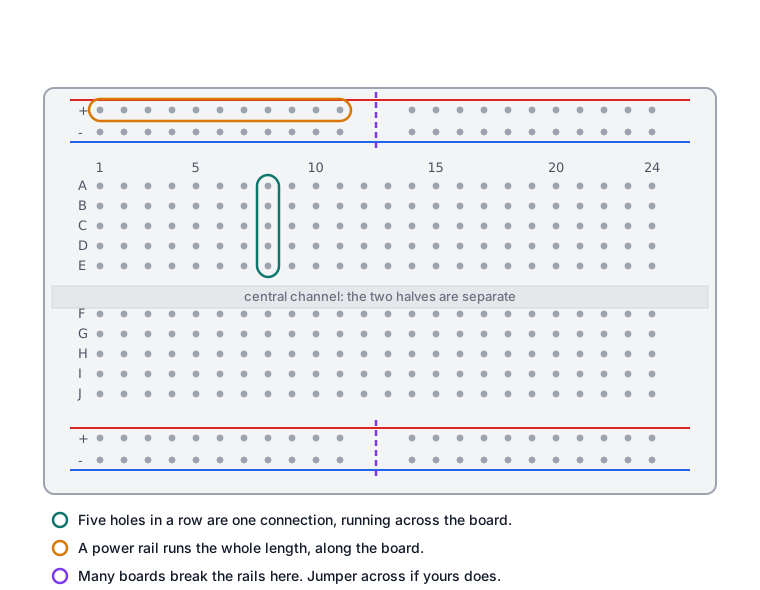
| Terminal strips | The main body, either side of the central channel | In short rows of five holes, across the board |
| Power rails | The long strips at the top and bottom edges, usually marked with a red and a blue line | Along the whole length, lengthways |
So in the main body, five holes in a row are one electrical point. Push two component legs into the same row of five and they are joined. Push them into different rows and they are not.
The central channel is a real divide. The five holes on its left and the five on its right are separate, even though they look like one row of ten. That gap exists so a chip can straddle it with each row of legs landing on its own set of holes.
The rails are not always continuous
This one catches almost everyone. On many full-size breadboards each power rail is broken in the middle, so the left half and the right half are not joined. Some boards mark the break with a gap in the printed red and blue lines; some do not mark it at all.
If half your circuit has power and half does not, this is usually why. The fix is a short jumper across the break, at each end of the board, joining the two halves of each rail.
Before trusting a new breadboard, test it. Set a multimeter to continuity, put one probe at each end of a rail, and see whether it beeps.
Building a circuit
- Disconnect the USB cable.
- Run a wire from the Arduino
5Vpin to the red rail, and from aGNDpin to the blue rail. Doing this first means every later component has power and ground within reach. - Place components so that the legs you want joined share a row of five, and the legs you want separate do not.
- Use the rails for anything that needs 5 V or ground, rather than running long wires back to the board each time.
- Keep wires short and flat. A tangle hides exactly the mistake you will be looking for later.
- Check the layout against your diagram, following each connection from one end to the other.
- Reconnect the USB cable.
Mistakes that look like faults
Both legs in the same row. A resistor with both ends in the same five-hole row is not in the circuit at all. It is a short, and whatever it was supposed to protect is now unprotected. This is the most expensive mistake on this page.
Legs too close together. Component legs bent so they touch, or an LED with its legs splayed into adjacent rows that are also bridged elsewhere, makes a connection you did not intend.
Pushed into the channel. A leg that goes into the central gap instead of a hole makes no connection at all. It looks fitted and is not.
A tired hole. Holes that have had thick wires forced into them lose their grip. If one section of the board misbehaves whatever you plug in, move to a fresh part of the board.
Solid versus stranded wire. Stranded wire frays and the strands spread inside the hole, which is how two neighbouring rows end up joined. Use solid-core wire or proper jumper leads.
Thick component legs. Anything heavier than a standard resistor leg can spread a clip permanently. Power components with thick leads belong on a terminal block, not a breadboard.
What a breadboard is not good for
Breadboards suit low-voltage, low-current, temporary circuits. They are poor at everything else, and it is worth knowing where the line is.
- High current heats the clips and the contact resistance becomes part of your circuit.
- Mains voltage must never go near one.
- Fast signals behave differently on a breadboard than on a proper board.
- Anything that has to keep working for months should be soldered. A breadboard circuit that is carried, knocked or warmed will eventually drop a connection.
Check yourself
- Two resistor legs are in the same five-hole row. Are they connected?
- A leg is on the left of the central channel and another on the right, in line with each other. Connected?
- Your circuit works on the left of the board and not the right, with everything wired the same. What do you check first?
- Why connect
5VandGNDto the rails before placing anything else?
Troubleshooting
| Symptom | Likely cause | Check or fix |
|---|---|---|
| Half the board has no power | The rail is broken in the middle | Jumper across the break at both rails |
| Circuit works when pressed, fails when released | Loose or worn hole | Move that part to a fresh row |
| Component does nothing | Both legs in one row, or a leg in the channel | Follow each leg to its row and confirm |
| Intermittent faults after moving the board | Wire part way out | Reseat every connection with the power off |
| Two signals interfering | Stranded wire fraying across rows | Replace with solid-core or jumper leads |
Next steps
- Easier first: Voltage, Current and Resistance.
- Next: Your First Circuit, an LED and a Resistor, built on the breadboard.
- Related product: a digital multimeter, for the continuity test that proves what is joined to what.
Sources and attribution
All text in this tutorial is original Siratek work, describing the standard breadboard layout common to the boards Siratek sells. No third-party tutorial text, diagrams, photographs or code has been reproduced here.