

01
Nov
Read a Push Button
Draft. This tutorial has not been checked against the physical product yet. Confirm wiring, pin assignments and voltage limits against the product documentation before building it.
| Difficulty | Beginner |
|---|---|
| Category | Inputs |
| Supported boards | Arduino Uno R3 and compatible ATmega328P boards |
| Time needed | 40 minutes |
| Prerequisites | Using a Breadboard |
| Tested board | Not yet verified |
| Tested on | Not yet verified |
| Arduino IDE version | Not yet verified |
| Library | Not yet verified |
What it does
A tactile push button is a switch that connects two contacts while you hold it down and disconnects them when you let go. That is all it does, and it is the foundation of every input a project will ever have.
The interesting part is not the button. It is that an Arduino cannot read “pressed” directly. It can only measure whether a pin is nearer 5 V or nearer 0 V, so the circuit has to turn a mechanical press into a voltage change. Getting that arrangement right is what this tutorial is really about, and the same arrangement appears again in reed switches, tilt switches, limit switches and door contacts.
Before you begin
Required parts and tools
- An Arduino Uno or compatible board, already set up.
- One 12 x 12 mm tactile push button switch.
- A breadboard and two jumper wires.
- A USB data cable.
The trap in a four-pin button
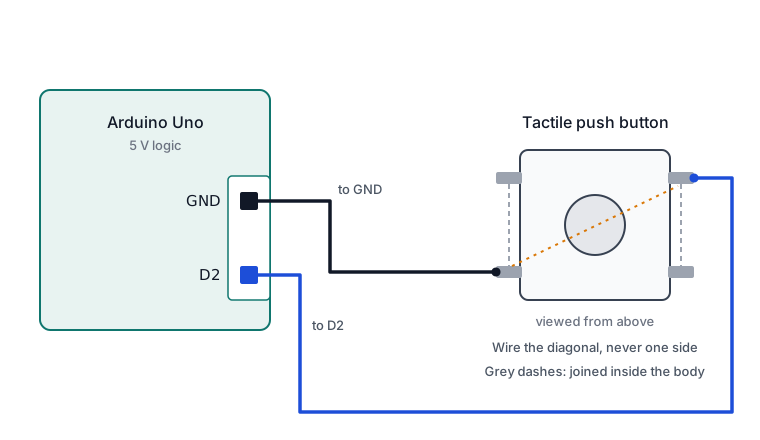
A 12 x 12 mm tactile switch has four legs, but it is not a four-way switch. The legs are joined in pairs inside the body: two of them are permanently connected to each other, and the other two are permanently connected to each other. Pressing the button joins the two pairs.
So two of the four legs are already connected before you touch anything. Wire across that pair and your circuit is closed permanently, with no way to tell whether the button is held.
The safe approach is to use legs that are diagonally opposite. Those are always on opposite pairs, whichever way round the button sits.
If you have a multimeter, confirm it in ten seconds: set it to continuity and touch the probes to two legs. A beep with the button released means that pair is internally joined. Diagonal legs should be silent until you press.
Why no resistor is needed
A pin set to INPUT and connected to nothing has no defined voltage. It floats, picking up electrical noise, and reads randomly. A button alone would leave the pin floating whenever it was not pressed.
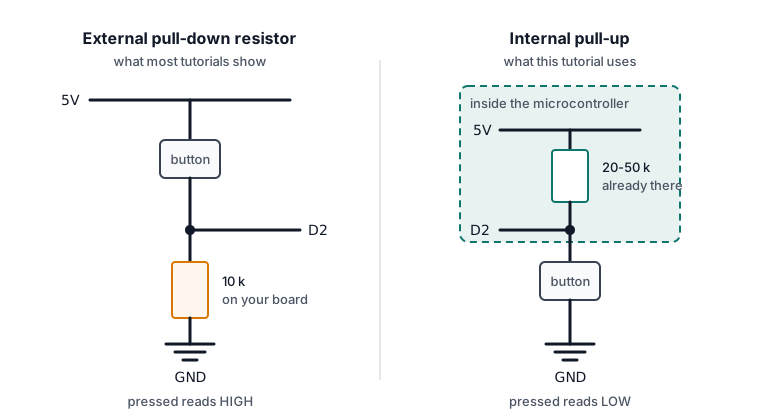
The traditional fix is an external resistor, and this is why almost every push button tutorial you will find shows one, usually 10 kilohms. There are two arrangements.
- A pull-down: the button connects the pin to
5V, and a resistor holds the pin down to ground when it is open. Pressed reads HIGH. - A pull-up: the button connects the pin to
GND, and a resistor holds the pin up to 5 V when it is open. Pressed reads LOW.
Either works. The resistor is not there to protect anything, and it is not a current limiter like the one an LED needs. Its only job is to give the pin a definite voltage while the button is open.
The ATmega328P has pull-up resistors built into the chip, one per pin, so on an Arduino you do not have to fit your own. pinMode(pin, INPUT_PULLUP) switches an internal resistor of roughly 20 to 50 kilohms between the pin and 5 V.
That is exactly the second arrangement above, with the resistor inside the chip instead of on your breadboard. The resistor in those other tutorials has not been left out here; it has moved. Two wires instead of three, nothing to lose, and nothing to wire backwards.
The consequence is worth saying plainly, because it surprises everyone:
- Button released: the internal pull-up wins, the pin reads HIGH.
- Button pressed: the pin is connected to ground, which wins, and it reads LOW.
The logic is inverted from what you would expect. Pressed means LOW.
There are still times you would fit your own. A long cable run picks up more noise than a 20 to 50 kilohm internal resistor can hold off, and a stronger pull-up of 4.7 kilohms steadies it. Some boards have no internal pull-ups at all. For a button on a breadboard next to the Arduino, the internal one is the right choice.
Safety notes
This circuit carries almost no current and is safe to handle. Still wire it with the USB cable unplugged, so that a misplaced wire is found before it is powered.
Pin reference
| Pin or label | Connect to | Purpose | Notes |
|---|---|---|---|
| Button leg | Uno GND |
Pulls the pin low when pressed | Either leg of one internal pair |
| Button leg, diagonal | Uno D2 |
The pin being read | Must be diagonal to the first |
| Remaining two legs | Nothing | Duplicates of the two above | Leave them unconnected |
D2 is used here only because it is convenient and clear of D0 and D1. Any digital pin works.
Wiring steps
- Unplug the USB cable.
- Press the button into the breadboard so that it straddles the central channel. It will sit firmly when the legs are in the right holes, and it will rock if they are not.
- Run a wire from one leg to a
GNDpin on the Uno. - Run a wire from the diagonally opposite leg to digital pin
2. - Check that the two wires really are diagonal. Two legs on the same side of the button is the single most common fault here.
- Plug the USB cable back in.
Software and libraries
No library is required. pinMode() and digitalRead() are part of the Arduino core.
Minimal working example
// Siratek: reading a push button.
// With INPUT_PULLUP, a pressed button reads LOW.

const int buttonPin = 2;

void setup() {
  pinMode(buttonPin, INPUT_PULLUP);  // Internal resistor holds the pin high when released.
  Serial.begin(9600);
  Serial.println("Siratek: press the button.");
}

void loop() {
  int state = digitalRead(buttonPin);

  if (state == LOW) {
    Serial.println("pressed");
  } else {
    Serial.println("released");
  }

  delay(200);  // Slows the output to something readable.
}
Upload it and open the Serial Monitor at 9600 baud. Holding the button should change the output from released to pressed.
Acting only on the moment of pressing
The sketch above reports the state many times a second while you hold the button. Most projects want to act once, at the moment of the press.
That means remembering what the state was last time round and reacting only to the change. The short pause after a change is there because the metal contacts inside a switch bounce for a few milliseconds as they close, producing several rapid transitions where you felt one press.
// Siratek: counting presses rather than reporting state.

const int buttonPin = 2;

int lastState = HIGH;  // Released, because of the pull-up.
int pressCount = 0;

void setup() {
  pinMode(buttonPin, INPUT_PULLUP);
  Serial.begin(9600);
  Serial.println("Siratek: counting presses.");
}

void loop() {
  int state = digitalRead(buttonPin);

  // HIGH to LOW is the moment of pressing.
  if (state == LOW && lastState == HIGH) {
    pressCount++;
    Serial.print("press ");
    Serial.println(pressCount);

    delay(50);  // Ignores the contact bounce that follows.
  }

  lastState = state;
}
The delay(50) works here but blocks everything while it waits. A project that has to keep doing other work needs the non-blocking version, which is covered in Making a Button Behave later in this library.
Expected result
With the first sketch, the Serial Monitor prints released repeatedly, changing to pressed while the button is held.
With the second, nothing prints until you press, and then one line appears per press:
Siratek: counting presses.
press 1
press 2
press 3
If one press produces three or four lines, the debounce pause is too short for your button. Raise it to 80 or 100 milliseconds.
Troubleshooting
| Symptom | Likely cause | Check or fix |
|---|---|---|
Always reads pressed |
Wired across an internally joined pair | Move one wire to the diagonal leg |
Always reads pressed, diagonal confirmed |
GND wire touching the signal leg |
Separate the two wires |
Always reads released |
GND not connected, or wrong pin |
Check the ground wire and that the sketch uses D2 |
| Readings flicker with nothing touched | INPUT used instead of INPUT_PULLUP |
Correct the pinMode() line |
| One press counts as several | Contact bounce | Raise the debounce pause |
| Button rocks in the breadboard | Legs not in the correct holes | Reseat it across the central channel |
| Works intermittently | Worn breadboard hole, or loose leg | Move to a fresh row |
| Nothing in the Serial Monitor | Rate mismatch or wrong port | Set the monitor to 9600 |
Next steps
- Easier first: Using a Breadboard, if the wiring was the hard part.
- Related product: the LED traffic light module, which this button can interrupt to make a pedestrian crossing.
- Next project: combine button and buzzer so a press makes a sound, then read Timing Without
delay()so the project can count presses while doing something else.
Sources and attribution
All text, wiring guidance and code in this tutorial are original Siratek work.
- ATmega328P datasheet, for the internal pull-up resistor range.
- Arduino core documentation for
pinMode(),INPUT_PULLUPanddigitalRead().
The internal pairing of a four-leg tactile switch is described from the part itself, and should be confirmed with a continuity test rather than assumed. No third-party tutorial text, diagrams, photographs or code has been reproduced here.