

01
Nov
Pinning Library Versions
Draft. This tutorial has not been checked against the physical product yet. Confirm wiring, pin assignments and voltage limits against the product documentation before building it.
| Difficulty | Advanced |
|---|---|
| Category | Foundations |
| Supported boards | Any |
| Time needed | 35 minutes |
| Prerequisites | Installing and Managing Libraries |
| Tested board | Not yet verified |
| Tested on | Not yet verified |
| Arduino IDE version | Not yet verified |
| Library | Not yet verified |
What this covers
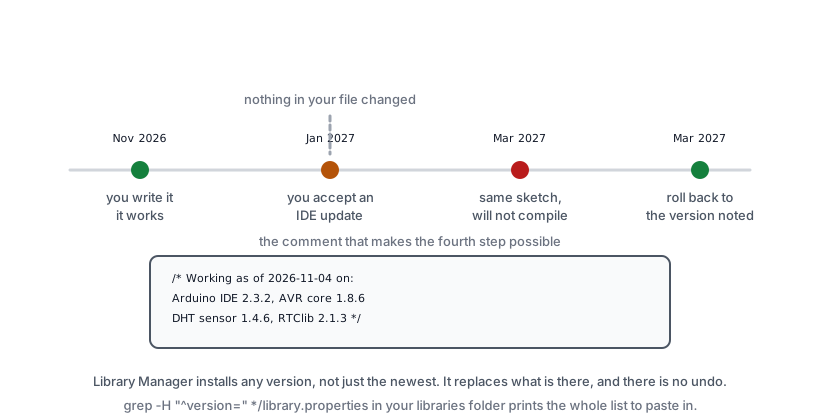
A sketch that compiled and worked last year will not necessarily compile today, on the same computer, with the same code. Nothing in your file changed. A library did.
This page is about why that happens, how to record what a working project used, and how to get back to it. It is the least exciting page in the library and it will save you more time than most of the others.
Before you begin
Nothing to wire.
Why it happens
Library Manager updates libraries, and the IDE encourages it. A notification appears, you click it, and a project you have not opened in months now depends on different code.
Libraries change their interfaces. Not carelessly, usually, but they do. Two examples already in this library:
- IRremote version 3 restructured almost everything. Sketches written for version 2 do not compile against it without changes.
- The ESP32 board package has changed behaviour across major versions more than the AVR core ever has.
Dependencies move underneath you. A library you installed deliberately pulls in two others automatically, and those update too.
None of this is anyone behaving badly. It is just what happens when code you did not write is part of your project and nothing records which version you meant.
What “it worked yesterday” usually means
When a project that worked stops working and nothing you did explains it, the order to suspect is:
- A library updated.
- The IDE updated, bringing a new core.
- The board package updated.
- Something physical moved.
The first three are invisible unless you look, which is the whole problem.
Recording what you used
The cheapest habit in this library: write down the versions when something works.
Every tutorial here has four front-matter fields for exactly this, filled in during hardware verification:
tested_board: Arduino Uno R3
tested_on: 2026-11-04
ide_version: 2.3.2
library: DHT sensor library 1.4.6, Adafruit Unified Sensor 1.1.14
For your own projects, a comment at the top of the sketch does the same job:
/*
  Siratek greenhouse logger
  Working as of 2026-11-04 on:
    Arduino IDE      2.3.2
    AVR core         1.8.6
    DHT sensor       1.4.6
    RTClib           2.1.3
    SD (bundled)     1.2.4
*/
It takes a minute. It is the difference between “it broke and I do not know why” and “it broke, and RTClib went from 2.1.3 to 2.2.0 last week”.
Finding the versions you have
In Library Manager, each installed library shows its version, and the dropdown lists every other version available.
On disk is more reliable, because it does not depend on the IDE being in a good mood. Each library folder contains a library.properties file with a version= line:
Documents/Arduino/libraries/DHT_sensor_library/library.propertiesA quick way to list them all, from a terminal in your sketchbook’s libraries folder:
grep -H "^version=" */library.propertiesThat one line produces exactly the list to paste into your sketch’s header comment.
The IDE and core versions
The library versions are only part of it.
IDE version: Help, About.
Board core version: Tools, Board, Boards Manager, and look at what is installed next to “Arduino AVR Boards” or “esp32”.
Record both. A core change moves the compiler itself, which can turn a warning into an error or change how much RAM a sketch uses.
Going back to a version that worked
Library Manager lets you install any version, not just the newest.
- Tools, Manage Libraries.
- Find the library and click it.
- The version dropdown lists everything available.
- Choose the version you recorded and install it.
It replaces what is there. There is no “both versions” and no undo, which is the main reason to have written the number down.
For a library that is not in Library Manager, keep the ZIP you installed from. A folder of ZIPs named DHT-1.4.6.zip beside the project is unglamorous and works.
Keeping a project’s libraries with the project
The thorough approach, worth it for anything you will be asked to rebuild in two years: copy the library folders into the project itself.
greenhouse-logger/
  greenhouse-logger.ino
  libraries-used/
    DHT_sensor_library-1.4.6/
    RTClib-2.1.3/
  NOTES.md
The IDE will not compile from libraries-used directly, so this is an archive rather than a build system. But it means the exact code that worked is sitting next to the sketch, and restoring it is copying folders rather than hunting for a version that may no longer be published.
arduino-cli does this properly, with a project file that names versions and a command that installs them. If you find yourself rebuilding projects often, it is worth the afternoon.
Before you update anything
A short discipline that costs almost nothing:
- Do not update libraries in the middle of debugging. You will no longer know which change caused what.
- Update one at a time, and compile after each.
- Write the new version down when it works, replacing the old note.
- Keep a known-good copy of anything that currently works and matters.
And the one that catches people: do not accept an update the day before you need to demonstrate something.
A note for this library
The front matter in every tutorial here carries tested_board, tested_on, ide_version and library, and every page currently renders “Not yet verified” for all four.
That is deliberate. A tutorial that says “install the DHT library” without saying which version was tested is making a promise it cannot keep, and when the library changes the page becomes quietly wrong. Those four fields are filled in during the hardware session, and until they are, the page says so plainly rather than implying it has been checked.
Check yourself
- A sketch that compiled last year now fails, and the file has not changed. What do you suspect?
- Where on disk can you find a library’s version without opening the IDE?
- Why record the board core version as well as the libraries?
- What is wrong with updating libraries while chasing a bug?
Answers in order: a library, the IDE, or the board package updated. In library.properties, on the version= line. Because the core includes the compiler, which can change errors, warnings and memory use. You stop being able to tell which change caused which behaviour.
Troubleshooting
| Symptom | Likely cause | Check or fix |
|---|---|---|
| Compiled last year, not today | A library or core updated | Compare against your recorded versions |
| Error naming a function that exists | Interface changed between major versions | Check the library’s version |
| Works on your machine, not a colleague’s | Different library versions | Compare library.properties on both |
| Two libraries conflict | Same include filename | Remove one; check which is actually needed |
| Rolled back and it still fails | A dependency also moved | Roll back the dependencies too |
| Cannot find the old version | Removed from Library Manager | Why keeping the ZIP matters |
| Sketch suddenly uses more RAM | New core, different compiler | Record core versions as well |
| Update broke it, cannot undo | No note of what was working | Record versions when things work |
Next steps
- Easier first: Installing and Managing Libraries, which this page assumes.
- Related: Troubleshooting by Symptom, where “it worked yesterday” has its own section.
- Next: Making a Project Survive Unattended, for the faults that appear while nobody is looking.
Sources and attribution
All text and code in this tutorial are original Siratek work.
- Arduino IDE and Library Manager behaviour, and the
library.propertiesformat, follow the Arduino library specification. - The IRremote version 2 to 3 interface change and the ESP32 board package’s behaviour across major versions are given as examples already met elsewhere in this library.
No third-party tutorial text, diagrams, photographs or code has been reproduced here.