

01
Nov
Installing and Managing Libraries
Draft. This tutorial has not been checked against the physical product yet. Confirm wiring, pin assignments and voltage limits against the product documentation before building it.
| Difficulty | Beginner |
|---|---|
| Category | Foundations |
| Supported boards | Any Arduino or ESP32 board |
| Time needed | 20 minutes |
| Prerequisites | Getting Started with Arduino Uno |
| Tested board | Not yet verified |
| Tested on | Not yet verified |
| Arduino IDE version | Not yet verified |
| Library | Not yet verified |
What this covers
What a library is, the two ways to install one, and how to avoid the version problems that make a sketch work on one computer and fail on another.
You will need this before the DHT11, every display, and most modules that talk over I2C or SPI.
Before you begin
The Arduino IDE open, and an internet connection for the first method below.
What a library actually is
A library is somebody else’s code, written once so that you do not have to write it again.
Take the DHT11 temperature sensor. It communicates over a single wire using a timing pattern where the difference between a one and a zero is a few microseconds of pulse width. Reading it correctly means handling that timing exactly. You could write it. It would take an evening, and the result would be code you then have to maintain.
Instead, #include <DHT.h> at the top of a sketch brings in a tested implementation, and you call dht.readTemperature(). The hard part is still happening, just not in your file.
This is why a module with a complicated protocol is often easier to use than a simple one, and why the question “is there a library for this” is usually worth asking first.
Installing from the Library Manager
This is the normal route and handles almost everything.
- Open Tools > Manage Libraries, or click the books icon in the left sidebar of IDE 2.x.
- Type the library name into the search box.
- Check the author before installing. Several libraries often share a similar name, and the documentation you are following means a specific one.
- Click Install.
- If the IDE offers to install dependencies as well, accept.
Dependencies
Some libraries need other libraries. Adafruit’s sensor libraries, for instance, generally need Adafruit Unified Sensor installed alongside them.
Newer IDE versions offer to handle this for you. If yours does not, or you decline, the sketch will fail to compile with an error naming a file it cannot find. That error message is telling you exactly which library is missing.
Installing from a ZIP file
Some libraries are not in the Library Manager, usually because they live only on GitHub.
- Download the repository as a ZIP. Do not unzip it.
- In the IDE, choose Sketch > Include Library > Add .ZIP Library.
- Select the file you downloaded.
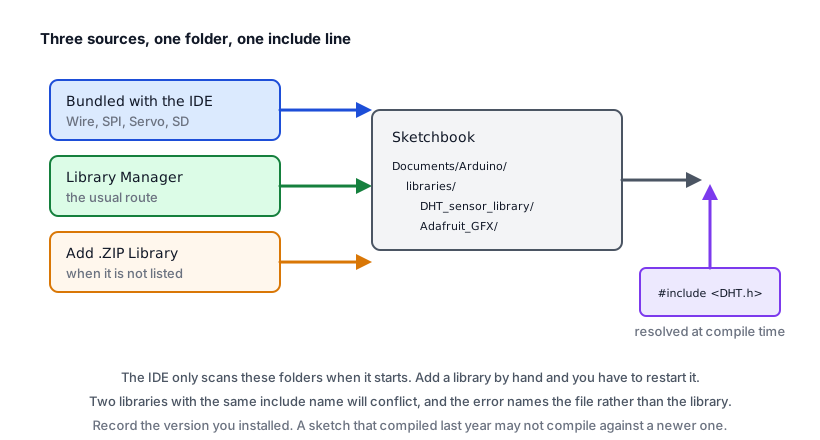
- Restart the IDE if the library does not appear under File > Examples.
Before installing anything this way, check the licence in the repository. Siratek’s sourcing rules require the repository URL, licence, version and test result to be recorded for any library used in a published tutorial.
Finding the examples
Every well-made library ships with example sketches, and they are more reliable than most documentation because they are maintained alongside the code.
File > Examples, then scroll past the built-in examples to the section for installed libraries. Opening the example for a new module and running it unmodified is the fastest way to find out whether your wiring is right, because it removes your code from the question entirely.
Versions, and why they matter
Libraries change. Functions get renamed, arguments get added, behaviour gets corrected. A sketch written against one version can fail against the next.
This is the most common reason a tutorial that worked last year does not work today, and it is rarely diagnosed correctly, because the error appears in your sketch rather than in the library that changed underneath it.
Two habits prevent most of the pain.
- Record the version you used. The Library Manager shows it next to each installed library. Every Siratek tutorial has a
libraryfield in its front matter for exactly this. - Do not update a library in the middle of a working project. Finish, then update, then test again.
The Library Manager lets you select an older version from the dropdown beside a library and install that specific one, which is how you return to a known-good state.
Where libraries live
Installed libraries go in a libraries folder inside your Arduino sketchbook directory. You can see the path at File > Preferences, under “Sketchbook location”.
Knowing this is useful for two things: removing a library the IDE will not uninstall cleanly, by deleting its folder with the IDE closed, and checking whether you have accidentally installed two versions of the same library, which produces compile errors that make no sense otherwise.
Check yourself
- A sketch fails to compile with
No such file or directorynaming a header. What is wrong? - You follow a tutorial exactly and it fails. Where would you look first?
- Why install a library’s example sketch before writing your own?
- Where would you record which version you used?
Troubleshooting
| Symptom | Likely cause | Check or fix |
|---|---|---|
No such file or directory |
Library not installed | Install it, matching the author named in the tutorial |
| Installed, still not found | IDE needs restarting | Close and reopen the IDE |
| A dependency is missing | Not installed alongside | Install the library it names, then recompile |
| Compiles for Uno, fails for ESP32 | Library does not support that board | Check the library’s supported architectures |
| Errors that make no sense | Two versions installed | Look in the sketchbook libraries folder for duplicates |
| Worked before, fails now | Library updated | Install the version the tutorial names |
| Example sketch missing | Library has none, or needs a restart | Restart, then check File > Examples |
Next steps
- Easier first: Getting Started with Arduino Uno.
- Next: Read Temperature and Humidity with DHT11, the first tutorial here that needs a library.
- Later: Pinning Library Versions, once you are maintaining projects over time.
Sources and attribution
All text in this tutorial is original Siratek work.
- Arduino IDE 2 documentation, for the Library Manager and ZIP installation routes.
Library names are given as pointers to their official sources. No third-party library code, tutorial text, diagrams or photographs has been reproduced here.